

Tesla Model 3 & Y Ryzen MCU3 Failure: Diagnosing a Black Screen and Replacement Guide (2017-2023)
This guide covers the common failures of the AMD Ryzen-based infotainment computer (MCU3) in the Tesla Model 3 and Model Y, including the critical programming required after replacement.
- This part is the AMD Ryzen-based MCU3, not the older Intel Atom unit. Verify your car's processor via the software menu before buying.
- A replacement MCU (new or used) is NOT plug-and-play. It absolutely requires programming and configuration by Tesla or an independent shop with 'Toolbox 3' software to pair it with your car's VIN.
- A common failure is a black screen, but a recall (SB-22-00-009) also addressed CPU overheating that caused lagging and reboots, which was fixed with a software update.
- You can save over $1,500 by using a recycled OEM part, but you must factor in the mandatory cost of professional programming.
Understanding the Tesla MCU3 Infotainment Computer
The main computer in 2021-2023 Tesla Model 3 and 2022-2023 Tesla Model Y vehicles is the Media Control Unit, Generation 3 (MCU3). This unit uses a powerful AMD Ryzen processor, a significant upgrade from the Intel Atom processor used in earlier models. This computer drives the entire 15-inch center display, which is the primary interface for nearly all vehicle functions, including climate, navigation, entertainment, and even gear selection on some models. When this unit fails, it can leave you with a blank screen, crippling many of the car's essential functions.
Is My Tesla Equipped with the AMD Ryzen MCU3?
Before diagnosing or purchasing a replacement, you must confirm your vehicle has the AMD Ryzen processor. Tesla used Intel Atom processors (MCU2) in earlier Model 3 and Y vehicles, and the parts are not interchangeable. The transition occurred throughout 2021 and early 2022.
To verify which processor your vehicle has:
- Navigate to Controls > Software on your vehicle's touchscreen.
- Tap on 'Additional Vehicle Information.'
- The screen will display your "Infotainment processor" as either AMD Ryzen or Intel Atom.
Pro Tip: If the screen is not working, you can sometimes tell by looking at pictures of the display. Only cars with the AMD Ryzen chip have the ability to make the vehicle visualization graphic take up the full screen.
Warning: The part numbers covered in this guide are for replacing a failed AMD Ryzen MCU3 in a vehicle that was originally equipped with it. They are NOT a compatible upgrade kit for older vehicles with the Intel Atom processor. While Tesla does offer an official, paid MCU2-to-MCU3 upgrade, it is a different kit with different hardware and procedures.
Symptoms of a Failing MCU3
A failing MCU3 can manifest in several ways, ranging from minor glitches to a complete system failure.
- Black or Unresponsive Screen: This is the most common and severe symptom. The main display will not turn on, or it will be completely black, leaving you without access to most vehicle controls.
- Constant Rebooting: The system may get stuck in a loop where the Tesla 'T' logo appears, and then the screen goes black again, repeating the cycle.
- Lagging and Freezing: The touchscreen may become extremely slow to respond to touches, or it may freeze entirely.
- Loss of Key Functions: A failing MCU can lead to the loss of the backup camera display, climate controls, turn signal sounds, and the speedometer display, which are significant safety concerns.
- Car Shows as "Offline": The vehicle may show as "offline" in the Tesla mobile app and fail to receive software updates.
Before assuming the MCU has failed, try a soft reboot by holding down both scroll wheels on the steering wheel until the screen turns black. This often resolves temporary software glitches. 🎬 Watch: How to troubleshoot a blank Tesla screen Also, verify that the vehicle's 12V battery is healthy, as a weak 12V battery can cause screen issues.
Known Issues, Recalls, and Service Bulletins
Recall SB-22-00-009: Infotainment CPU Overheating
In May 2022, Tesla issued a recall for approximately 130,000 vehicles equipped with the AMD Ryzen MCU3, including 2022 Model 3 and Model Y vehicles. The issue was that the processor could overheat during battery pre-conditioning or while DC fast-charging. This overheating could cause the center display to slow down or go blank. Tesla addressed this issue with an over-the-air (OTA) software update that improved temperature management. If you are experiencing these symptoms, ensure your vehicle's software is up to date.
Buying a Used MCU3: What to Look For
Purchasing a used MCU3 is a great way to save money, but it requires careful attention to detail. A new unit from Tesla can cost over $2,000, while a used unit is often a fraction of that price.
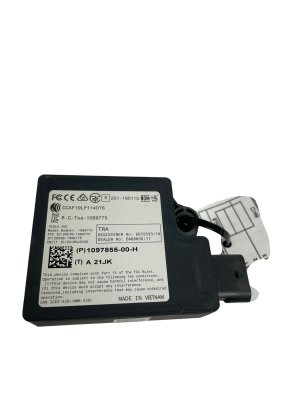
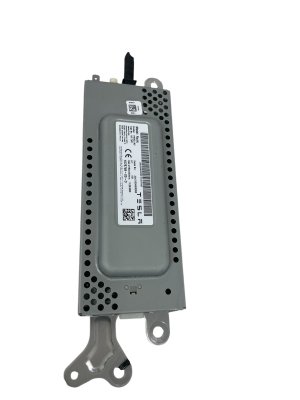
- Verify the Part Number: The most critical step is to match the part number exactly. While several revision numbers exist (e.g., 1681271-00-D, 1681271-S0-J), it is safest to purchase a unit with the identical number as the one you are replacing to ensure compatibility.
- Confirm It's an AMD Ryzen Unit: Double-check with the seller that the unit is from a vehicle with the AMD Ryzen processor. Do not purchase a unit from an older, Intel-based car.
- Inspect the Connectors: Ask for clear photos of all connectors. Look for any bent pins, corrosion, or signs of damage that could prevent it from working correctly.
- Budget for Programming: A used MCU is not a plug-and-play part. It MUST be programmed to your vehicle by Tesla or a qualified independent shop. Factor this mandatory cost into your budget.
MCU3 Replacement and Programming Requirements
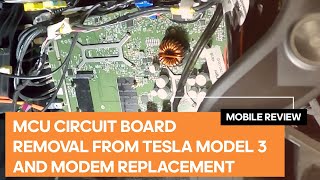
While the physical installation can be performed by a skilled DIY mechanic, the final software configuration cannot. The MCU is a security-locked component tied to the vehicle's VIN and its specific set of features.
Programming and Configuration: The Critical Step
After a new or used MCU is installed, it must be "associated" with the vehicle. This process loads the car's unique configuration file, which enables features like Autopilot/FSD, Premium Connectivity, and specific hardware settings.
- Tesla Service Center: A Tesla Service Center can perform the entire replacement and programming.
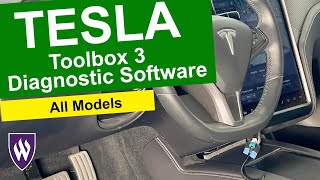
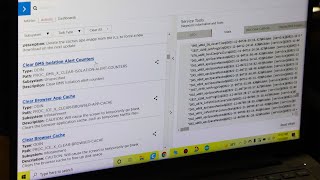
- Independent Repair Shops: Many independent shops that specialize in EVs now have access to Tesla's diagnostic software, Toolbox 3. This software allows them to perform the same configuration and programming as a dealer. The process requires a subscription to Toolbox, the correct diagnostic cables, and authorization from the vehicle owner via email. 🎬 See: How to access Tesla's diagnostic software
Warning: You cannot simply swap in a used MCU and expect it to work. The vehicle will not operate correctly, and many features will be disabled until the unit is properly configured and associated with your car's VIN using Tesla's diagnostic software.
Cost of Replacing a Tesla MCU3
| Item | Estimated Cost |
|---|---|
| New OEM (from Tesla Service) | $2,000 - $2,600 |
| Used OEM (Recycled) | $200 - $600 |
| Shop Labor & Programming | $300 - $600 |
Frequently Asked Questions (FAQ)
Can I use this part to upgrade my older Tesla with an Intel Atom MCU?
No. This is a direct replacement part for vehicles that already have the AMD Ryzen MCU3. Upgrading an older car requires a specific, more expensive retrofit kit from Tesla that includes different components and wiring harnesses.
Will a replacement MCU affect my Autopilot, FSD, or Premium Connectivity?
Yes, until it is programmed. The replacement unit must be configured to your car's VIN. During this "association" process, a technician uses Tesla's Toolbox software to load your vehicle's specific features onto the new computer. Once programmed correctly, all your purchased features will function as before.
What is Tesla Toolbox and why is it necessary?
Toolbox is Tesla's official diagnostic software. For a part like the MCU, it is necessary to perform security-related functions, such as pairing the new computer to the car's VIN and restoring the vehicle's software configuration. 🎬 Watch: Guide to using Tesla Toolbox 3 This can be done by Tesla or an independent shop with a Toolbox subscription.
My screen is black. How do I know if it's the MCU or just a glitch?
First, try a soft reboot by holding both scroll wheels on the steering wheel for about 15-30 seconds until the Tesla logo appears. If that doesn't work, check the health of your 12V battery. If both of those are fine and the screen remains black or keeps rebooting, it is likely a hardware failure in the MCU.
Helpful Videos
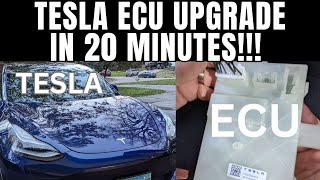
Technical Specifications
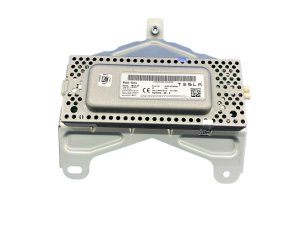
OEM Part Numbers: 1681271-00-D 1681271-00-G 1681271-S0-D 1681271-S0-J 1681271-S0-K
Processor: AMD Ryzen
We Have This Part in Stock

The information in this article is provided for general reference and educational purposes only. Vehicle specifications, procedures, and part compatibility can vary by production date, trim level, and region. Always consult your vehicle's factory service manual and verify part numbers before purchasing or performing repairs. Safety-critical components such as airbags, seat belts, and braking systems should be installed by a qualified professional.
- Tesla 3:
- TESLA 3:
- Tesla Y:
- TESLA Y:
- 🎬 Helpful Videos
- 🛍️ Shop This Part
- Understanding the Tesla MCU3 Infotainment Computer
- Is My Tesla Equipped with the AMD Ryzen MCU3?
- Symptoms of a Failing MCU3
- Known Issues, Recalls, and Service Bulletins
- Recall SB-22-00-009: Infotainment CPU Overheating
- Buying a Used MCU3: What to Look For
- MCU3 Replacement and Programming Requirements
- Programming and Configuration: The Critical Step
- Cost of Replacing a Tesla MCU3
- Frequently Asked Questions (FAQ)
- 🎟️ Get 5% Off