

2020-2026 Tesla Model 3 & Y Screen Failure: Ryzen vs. Intel, Costs, and Replacement Guide
This guide covers the common failures of the main infotainment display in the 2022-2026 Tesla Model 3 and 2020-2026 Tesla Model Y, focusing on critical compatibility differences and replacement requirements.
- Compatibility is critical: You MUST match the replacement screen to your car's processor (Intel Atom vs. AMD Ryzen) and model generation (pre-Highland vs. Highland). They are not interchangeable.
- Programming is required: A replacement screen is NOT plug-and-play. It must be software-paired to the vehicle using Tesla's proprietary 'Toolbox' software, which usually requires a visit to Tesla or a specialized independent shop.
- A blank screen is a major safety issue. It removes your speedometer, gear indicator, and rearview camera, making the vehicle unsafe to operate.
- Common failures include black screens, freezing, and a cosmetic yellow border. A simple two-scroll-wheel reboot can often fix temporary software glitches.
Is Your Tesla Screen Blank, Yellowing, or Unresponsive?
The large center screen is the defining feature of the Tesla Model 3 and Model Y interior. When it works, it's a seamless command center. But when it fails, it can be incredibly disruptive, removing access to everything from your speed to the defroster. Common problems range from cosmetic annoyances like a yellow border to critical failures like a completely black screen. Understanding the cause of the failure is the first step to finding the right solution.
Symptoms of a Failing Infotainment Display
Screen issues can appear suddenly or start as minor glitches that worsen over time. Here are the most common symptoms owners report:
Black or Blank Screen
The most serious symptom is a screen that goes completely black and will not turn on. This can happen intermittently or become a permanent failure. A blank screen is a critical safety issue, as it removes the speedometer, gear indicator, and rearview camera display. This can sometimes be caused by a software glitch that a system reboot will fix, but a persistent black screen often points to a hardware failure in the Media Control Unit (MCU), the computer that powers the display.
Yellow Border Around Screen Edges
A faint yellow or brown border appearing around the perimeter of the display is a very common cosmetic issue. This is caused by the slow degradation of the optical adhesive used to bond the screen layers, a process often accelerated by heat and sun exposure. While it doesn't initially affect functionality, it can worsen over time and may eventually lead to "phantom" or ghost touches. Tesla Service Centers have a special UV light tool that can cure the adhesive and remove the yellowing, a procedure that takes a few hours and may be covered under warranty.
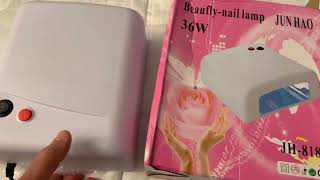
🎬 See this DIY cheap UV treatment for yellowing screensFrozen, Unresponsive, or Lagging Screen
The display may be on but completely frozen, or it may ignore touch inputs entirely. You might also notice significant lag when opening apps, using navigation, or when the backup camera feed appears. These issues are often caused by software bugs, an overloaded system, or conflicts with connected devices. Performing a soft reboot by holding down both scroll wheels on the steering wheel for 15 seconds will often resolve these temporary glitches.
Constant Rebooting
The screen may get stuck in a continuous reboot loop, where the Tesla logo appears and disappears repeatedly. This points to a more serious software or hardware issue with the MCU. It can be a sign of memory wear or a failing processor.
Pro Tip: Before assuming a hardware failure, always perform a soft reboot. Press and hold both scroll wheels on the steering wheel until the screen turns black. Release the wheels, and the system will restart. This simple step fixes a majority of temporary software-related freezes and lags.
🎬 Watch: How to perform a screen reset on your TeslaKnown Issues and Recalls
The most widely known infotainment-related recall was for older Model S and Model X vehicles (pre-2018) equipped with the first-generation Media Control Unit (MCU1). That recall (NHTSA 21V035000) addressed a failing eMMC flash memory chip that would wear out, causing permanent black screens.
The 2022-2026 Model 3 and 2020-2026 Model Y use newer MCU2 (Intel Atom) and MCU3 (AMD Ryzen) computers, which are not part of that specific recall. However, the safety implications of a screen failure—loss of rearview camera, defroster controls, and speedometer—remain the same. There are no major recalls specifically for the MCU2 or MCU3 displays in the Model 3 and Y as of early 2026, but individual hardware failures can still occur.
Decoding Compatibility: The Critical Ryzen vs. Atom Difference
The single most important factor when replacing a Tesla infotainment screen is the processor that powers it. The screens for the two different processor types are not interchangeable. Installing the wrong type will not work.
Tesla used two different infotainment processors in these vehicles:
- MCU2: Powered by an Intel Atom processor. Found in earlier models.
- MCU3: Powered by a much faster AMD Ryzen processor. Found in newer models, offering significantly better performance, faster app loading, and smoother graphics.
| Vehicle | Approximate Production Dates | Processor (MCU) |
|---|---|---|
| Tesla Model Y | 2020 - Late 2021 | Intel Atom (MCU2) |
| Tesla Model Y | Late 2021 - 2026 | AMD Ryzen (MCU3) |
| Tesla Model 3 | 2022 - 2023 | AMD Ryzen (MCU3) |
How to check your processor: On your car's touchscreen, navigate to Controls > Software > Additional Vehicle Information. The screen will list either "Intel Atom" or "AMD Ryzen" as the infotainment processor.
🎬 Watch: AMD Ryzen vs Intel Atom performance comparisonThe 'Highland' (2024+) Model 3 Factor
The refreshed 2024+ Tesla Model 3, known as 'Highland', introduced another compatibility variable. The Highland's main display has thinner bezels and a slightly different form factor. Crucially, it also integrates the primary gear selector, which is operated by swiping on the left edge of the screen. Because of these physical and functional differences, a screen from a pre-refresh (2022-2023) Model 3 is not compatible with a 2024+ Highland model. The upcoming Model Y 'Juniper' refresh is expected to follow suit.
Buyer's Guide: What to Look For in a Used Infotainment Display
Buying a used OEM display can save you a significant amount of money, but it requires careful verification to avoid costly mistakes.
- Match the Processor: This is the absolute first step. A screen from an AMD Ryzen car will not work in an Intel Atom car, and vice-versa. Verify your car's processor before you shop.
- Match the Vehicle Generation: A screen from a 2024+ 'Highland' Model 3 will not fit an earlier Model 3. Ensure the donor vehicle matches your car's generation (pre-refresh or Highland).
- Verify the Part Number: Whenever possible, match the part number from your original unit to the replacement. There are many revisions, and matching the number is the best way to ensure compatibility.
- Physical Inspection: Carefully inspect photos of the used screen. Look for any signs of the yellow border, even if faint. Check for deep scratches, cracks, or delamination around the edges. Ensure all connectors on the back are intact and not damaged.
- Why Used OEM is a Good Choice: A used original Tesla part is guaranteed to have the correct fit, finish, and software foundation. While aftermarket screens exist, they can introduce new compatibility issues or lack the full functionality of the original, especially concerning deep system integration and future software updates.
Warning: Tesla Service may refuse to install or program a used part that you provide. It is critical to confirm with your installer—whether it's Tesla or an independent shop—that they are willing and able to perform the necessary software configuration on a customer-supplied used screen before you make a purchase.
Programming and Installation: This Is Not a Plug-and-Play Job
Physically replacing the display is a relatively straightforward process for a DIYer with the right tools, involving the removal of trim and a few bolts. However, the real challenge is the software configuration required after installation.
A replacement screen must be electronically paired to the vehicle. Tesla's official service procedure requires a technician to connect a laptop with proprietary 'Toolbox 3' software to the vehicle. They then run specific software routines to configure the new display and link it to the car's gateway and other modules. This process is essential for security and full functionality.
Without this software pairing, a replacement screen may not function at all, or may have limited features. Access to Tesla's diagnostic software is restricted, so not all independent repair shops can perform this service. You must have a plan for software configuration before attempting a replacement.
Replacement Cost Comparison
Prices can vary based on your vehicle's configuration and your location. The most significant cost variable is whether you need just the screen or the entire MCU computer assembly.
| Part/Service | Estimated Cost | Notes |
|---|---|---|
| New OEM Display (from Tesla) | $1,400 - $2,000+ | Installed by Tesla. Price can vary. A Reddit user was quoted $1,400 for a Model Y screen replacement. |
| Used OEM Display | $400 - $900 | Part only. Price depends heavily on condition, processor type, and model generation. |
| Aftermarket Options | $350 - $600 | Primarily for adding a rear screen; direct aftermarket replacements for the main screen are less common and may have compatibility issues. |
| Shop Labor (Installation & Programming) | $200 - $500 | Highly variable. Depends on whether the shop has the necessary software to program the unit. |
Frequently Asked Questions (FAQ)
Do I absolutely need to program a replacement Tesla screen?
Yes. A replacement display, even a brand new OEM part, must be software-configured to the car using Tesla's diagnostic tools. Without this step, it will not function correctly. This is a critical anti-theft and system integration measure.
How do I know if my Tesla has the Intel Atom or AMD Ryzen processor?
On the center screen, go to Controls > Software > Additional Vehicle Information. The processor type will be listed there. This is the most important piece of information you need to find a compatible replacement.
Can I upgrade my older Intel Atom screen to the faster AMD Ryzen screen?
While Tesla offered an official (paid) infotainment upgrade for very old Model S/X cars, there is no official retrofit program to upgrade a Model 3 or Y from Intel to AMD. The systems are deeply integrated and not designed to be cross-compatible by a third party.
Is the yellow border around the screen a serious problem?
Initially, it is a cosmetic defect caused by adhesive degradation from heat. It does not immediately affect the screen's function. However, over time it can worsen and potentially lead to phantom touch inputs. Tesla has a UV light treatment that can fix it.
Technical Specifications
Known OEM Part Numbers
Part numbers for Tesla components change frequently. The following numbers have been associated with the main infotainment display for these models. This list is not exhaustive, and some numbers may refer to specific revisions or related components (like the rear screen). Always verify the part number from your original unit.
- 1089543-00-I
- 1089543-00-J
- 1089543-00-K
- 1673288-10-B
- 1673288-20-B
- 1673288-70-A
- 1756566-00-D
- 1875931-00-C
- 1875931-00-D (Note: Associated with the rear screen on 'Highland' models)
- 1946103-20-C
Helpful Videos



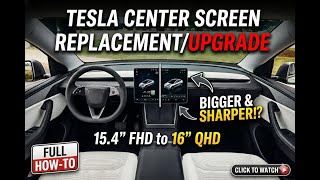
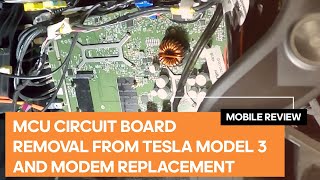
Technical Specifications
OEM Part Numbers: 1089543-00-I 1089543-00-J 1089543-00-K 1673288-10-B 1673288-20-B 1673288-70-A 167328820B 1756566-00-D 1875931-00-C 1875931-00-D 187593100C 187593100D 1946103-20-C
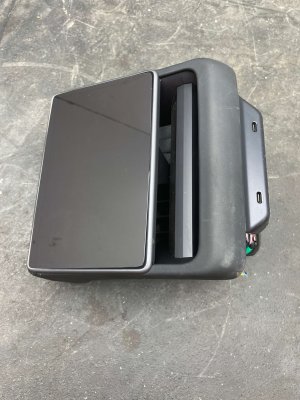
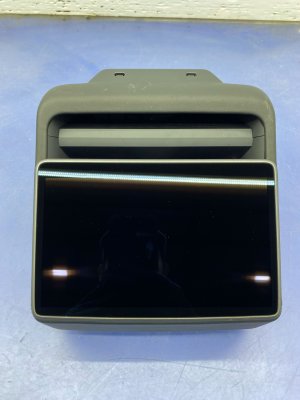
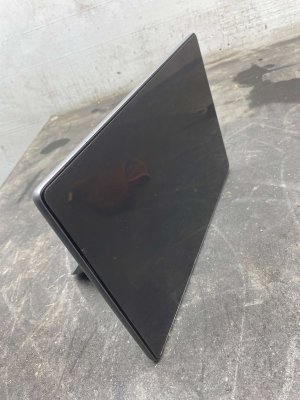
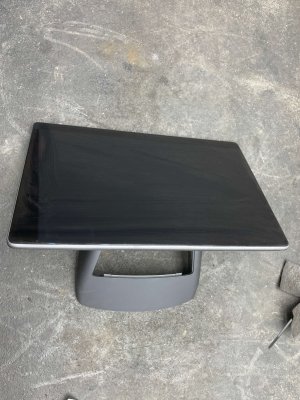
15-inch primary landscape display. Powered by either an Intel Atom (MCU2) or AMD Ryzen (MCU3) processor. 2024+ 'Highland' models feature a display with thinner bezels and integrated on-screen gear selector.
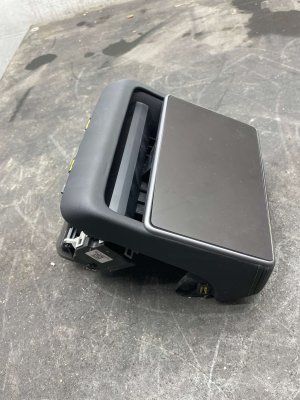
We Have This Part in Stock

The information in this article is provided for general reference and educational purposes only. Vehicle specifications, procedures, and part compatibility can vary by production date, trim level, and region. Always consult your vehicle's factory service manual and verify part numbers before purchasing or performing repairs. Safety-critical components such as airbags, seat belts, and braking systems should be installed by a qualified professional.
- TESLA 3:
- TESLA Y:
- 🎬 Helpful Videos
- 🛍️ Shop This Part
- Is Your Tesla Screen Blank, Yellowing, or Unresponsive?
- Symptoms of a Failing Infotainment Display
- Black or Blank Screen
- Yellow Border Around Screen Edges
- Frozen, Unresponsive, or Lagging Screen
- Constant Rebooting
- Known Issues and Recalls
- Decoding Compatibility: The Critical Ryzen vs. Atom Difference
- The 'Highland' (2024+) Model 3 Factor
- Buyer's Guide: What to Look For in a Used Infotainment Display
- Programming and Installation: This Is Not a Plug-and-Play Job
- Replacement Cost Comparison
- Frequently Asked Questions (FAQ)
- Technical Specifications
- Known OEM Part Numbers
- 🎟️ Get 5% Off